
Split PDF by Bookmarks
Split a PDF at its bookmarks (outline). Create a separate PDF for every chapter or section using the document bookmarks. Files are named after the bookmark titles.
- 100% private
- No upload
- Free, no sign-up
- Fast
How to Split PDF by Bookmarks online
3 simple steps. No software to install.
-
1
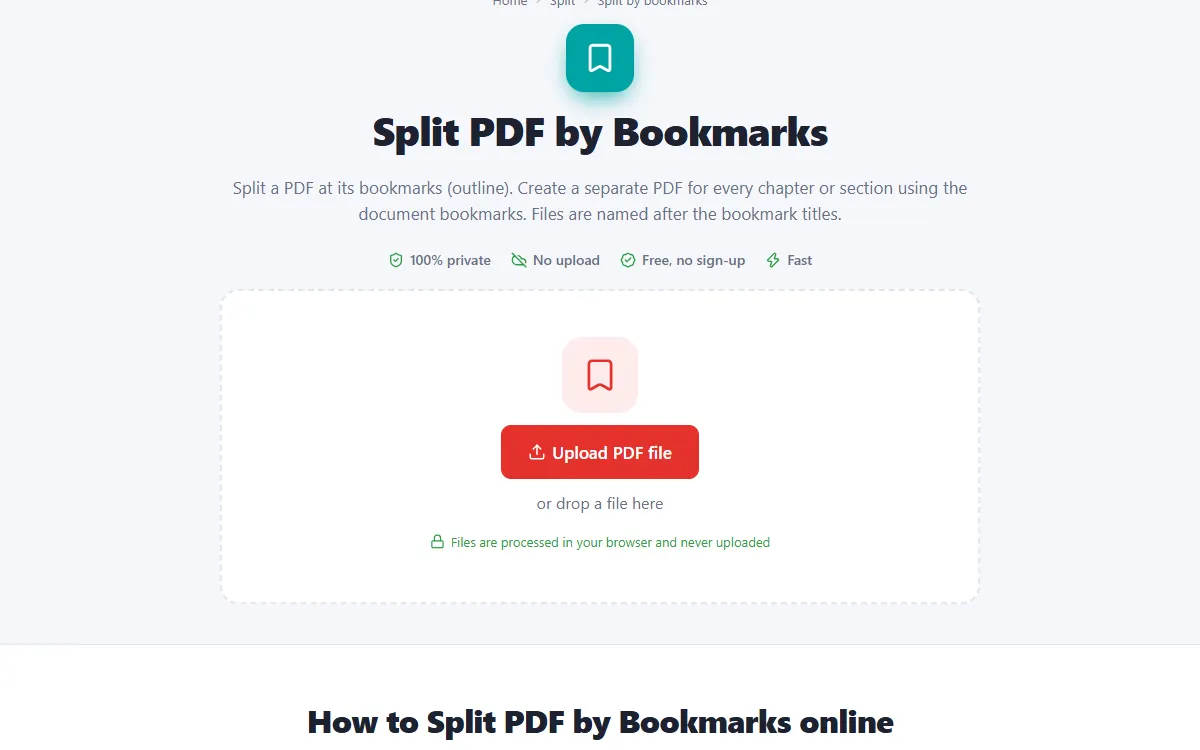
Upload your PDF with bookmarks
Click the upload button or drag and drop your PDF with bookmarks onto the page. Nothing is sent to a server: the file opens right in your browser.
-
2
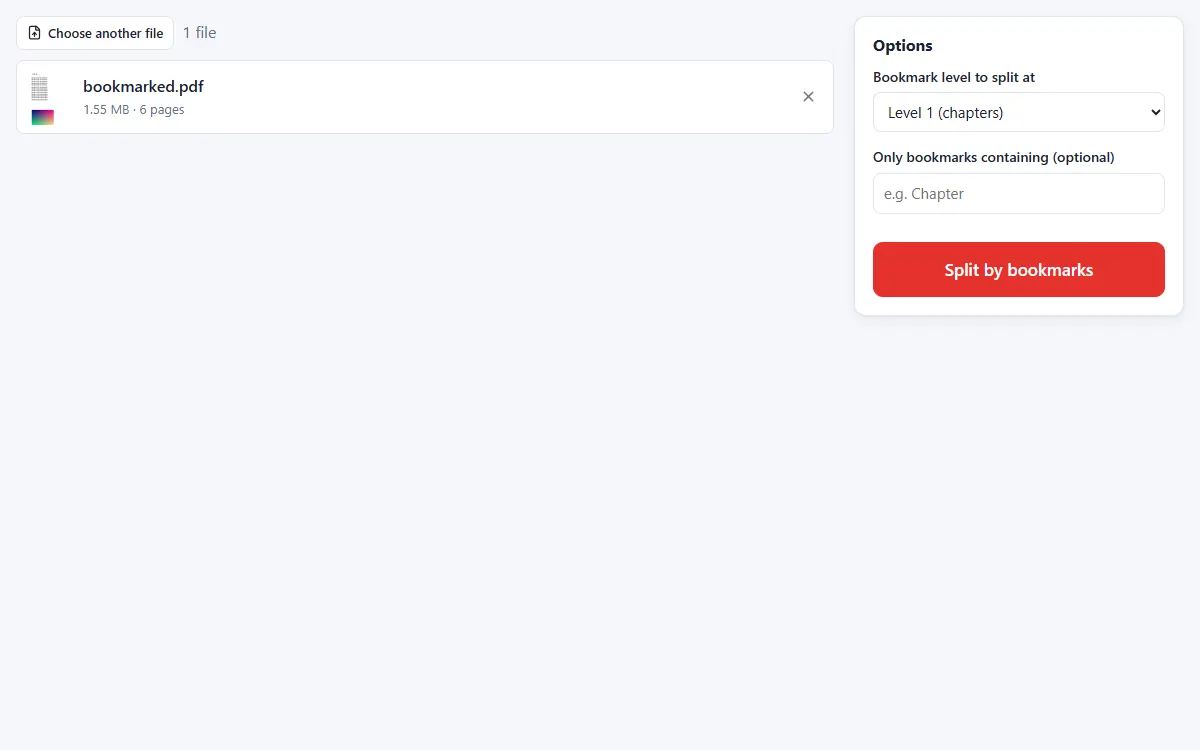
Pick the bookmark level
Split at level 1 bookmarks (chapters) or also at sub-sections, and optionally only at bookmarks containing a word.
-
3
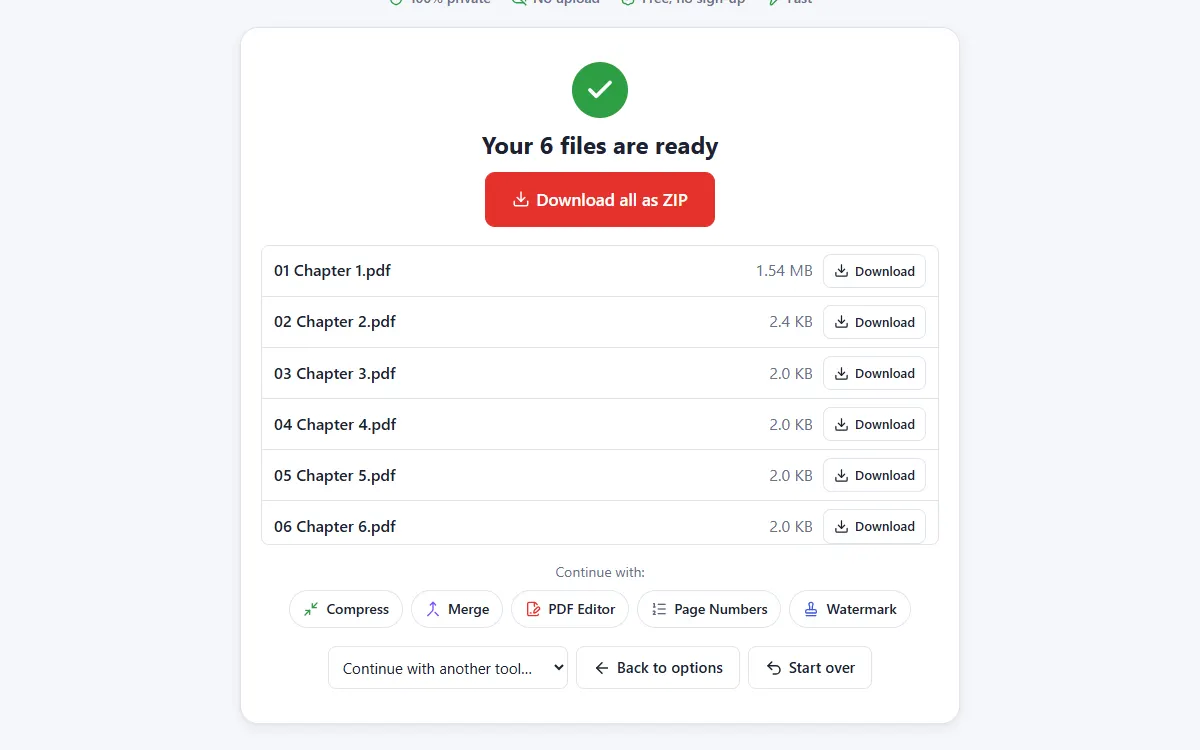
Download the chapters
Each part is named after its bookmark, so you get files like "03 Results.pdf".
Why use our Split by bookmarks tool
Named after bookmarks
No renaming needed: file names come from the bookmark titles.
Choose the depth
Split by chapters only, or by chapters and sections.
Private and secure
Files are processed on your own device. They are never uploaded, stored or seen by anyone.
Free, no sign-up
No account, no email and no watermark on your documents.
Fast
No waiting for uploads and downloads: results are ready in seconds.
Works everywhere
Windows, Mac, Linux, Android and iPhone, in any modern browser.
Split by bookmarks: frequently asked questions
What if my PDF has no bookmarks?
Add them first with the Create Bookmarks tool, or use Split by pages or Split by text.
What happens to pages before the first bookmark?
They are saved in their own file, marked as the start of the document.
Is Split by bookmarks free to use?
Yes. PDFNest is free, needs no account and never adds a watermark.
Are my files safe?
Yes. Your files are processed inside your browser and are never uploaded to a server, so nobody else can access them.
Does it work on my phone?
Yes. It works in any modern browser on Android and iPhone as well as on computers. Large files are faster on a computer.