
Batch Rename PDF Files
Rename PDF files using their content. Rename many PDFs at once using a pattern with the title, author, date, first line of text or a counter.
- 100% private
- No upload
- Free, no sign-up
- Fast
How to Batch Rename PDF Files online
3 simple steps. No software to install.
-
1
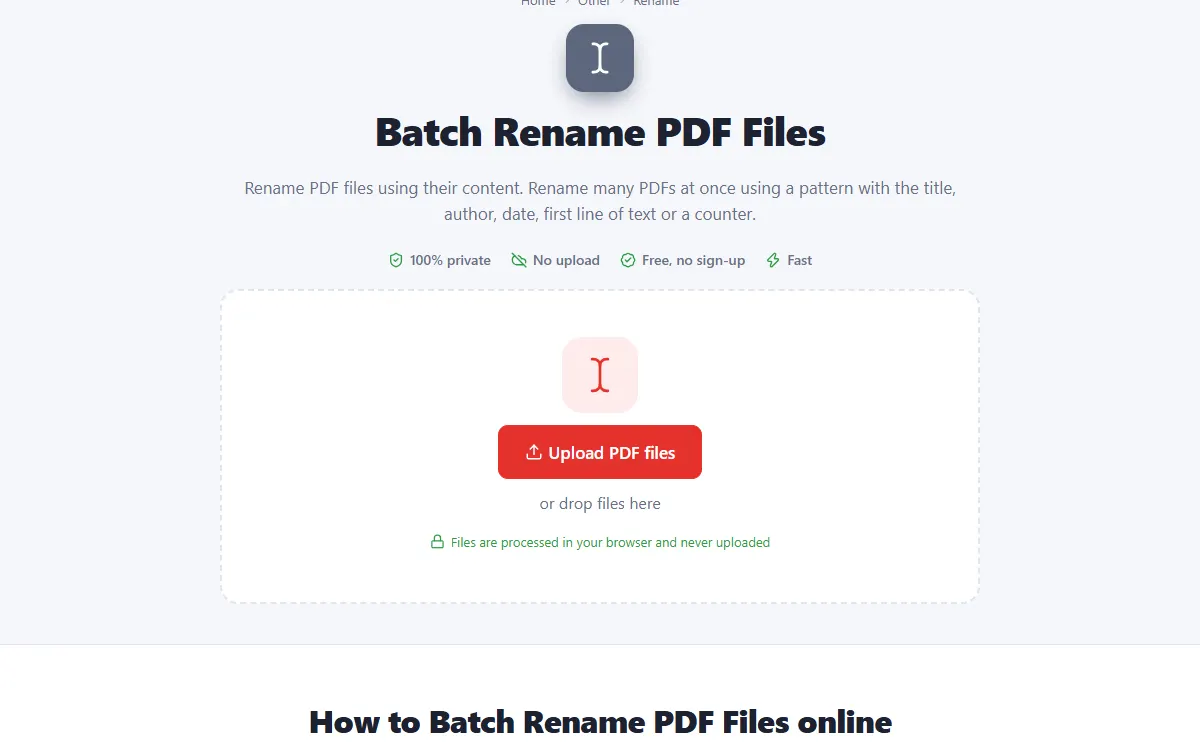
Upload your PDF files
Click the upload button or drag and drop your PDF files onto the page. Nothing is sent to a server: the file opens right in your browser.
-
2
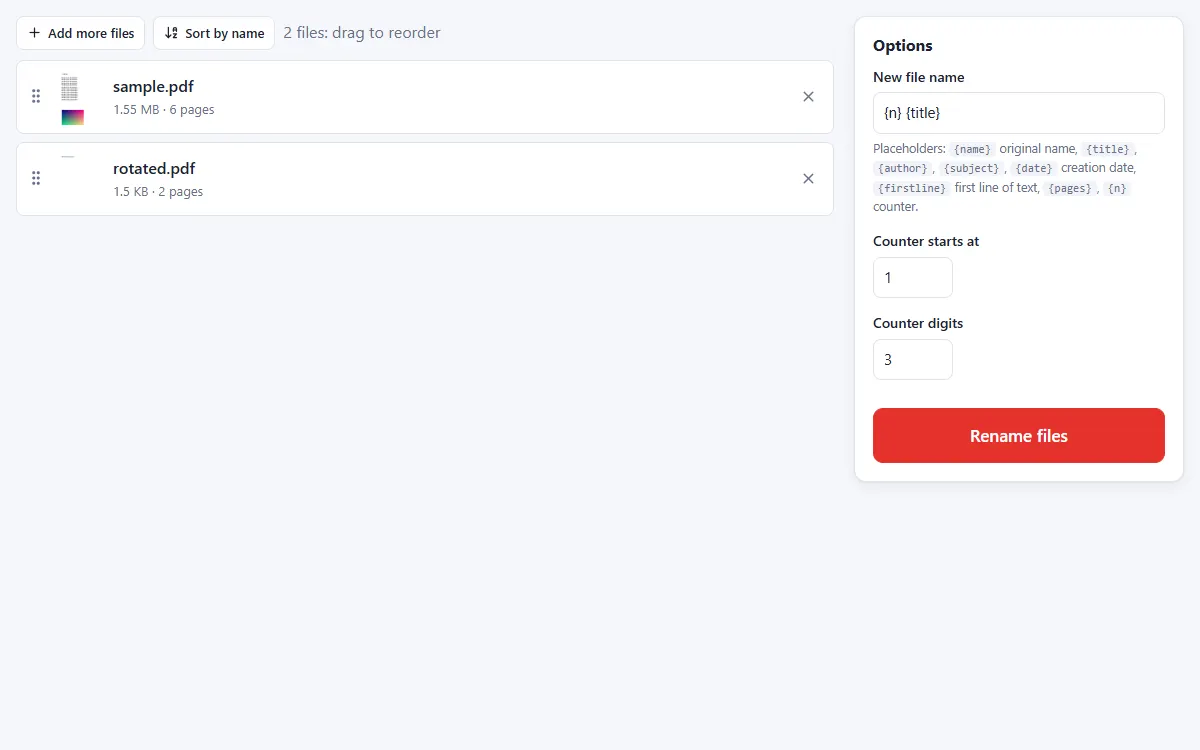
Build the new name
Combine placeholders like {title}, {author}, {date}, {firstline} and a counter {n}.
-
3
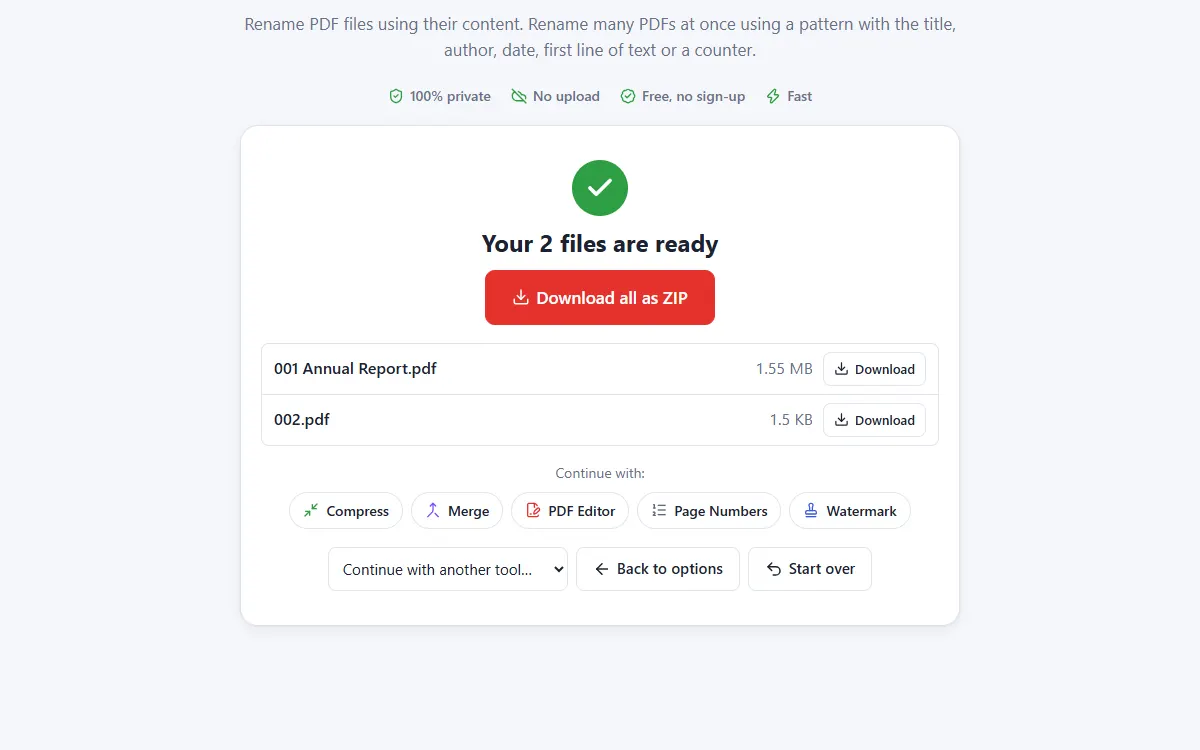
Download renamed files
Get all renamed files in one ZIP.
Why use our Rename tool
Names from content
Use the first line of text or the document title.
Counters
Add numbers like 001, 002 to keep files in order.
Private and secure
Files are processed on your own device. They are never uploaded, stored or seen by anyone.
Free, no sign-up
No account, no email and no watermark on your documents.
Fast
No waiting for uploads and downloads: results are ready in seconds.
Works everywhere
Windows, Mac, Linux, Android and iPhone, in any modern browser.
Rename: frequently asked questions
Is the content of the PDFs changed?
No. Only the file names change.
What if a PDF has no title?
The original file name is used instead.
Is Rename free to use?
Yes. PDFNest is free, needs no account and never adds a watermark.
Are my files safe?
Yes. Your files are processed inside your browser and are never uploaded to a server, so nobody else can access them.
Does it work on my phone?
Yes. It works in any modern browser on Android and iPhone as well as on computers. Large files are faster on a computer.