
N-up PDF: Multiple Pages per Sheet
Put several pages on one sheet. Print 2, 4, 6, 8, 9 or 16 pages per sheet to save paper, with optional borders.
- 100% private
- No upload
- Free, no sign-up
- Fast
How to print several PDF pages per sheet
3 simple steps. No software to install.
-
1
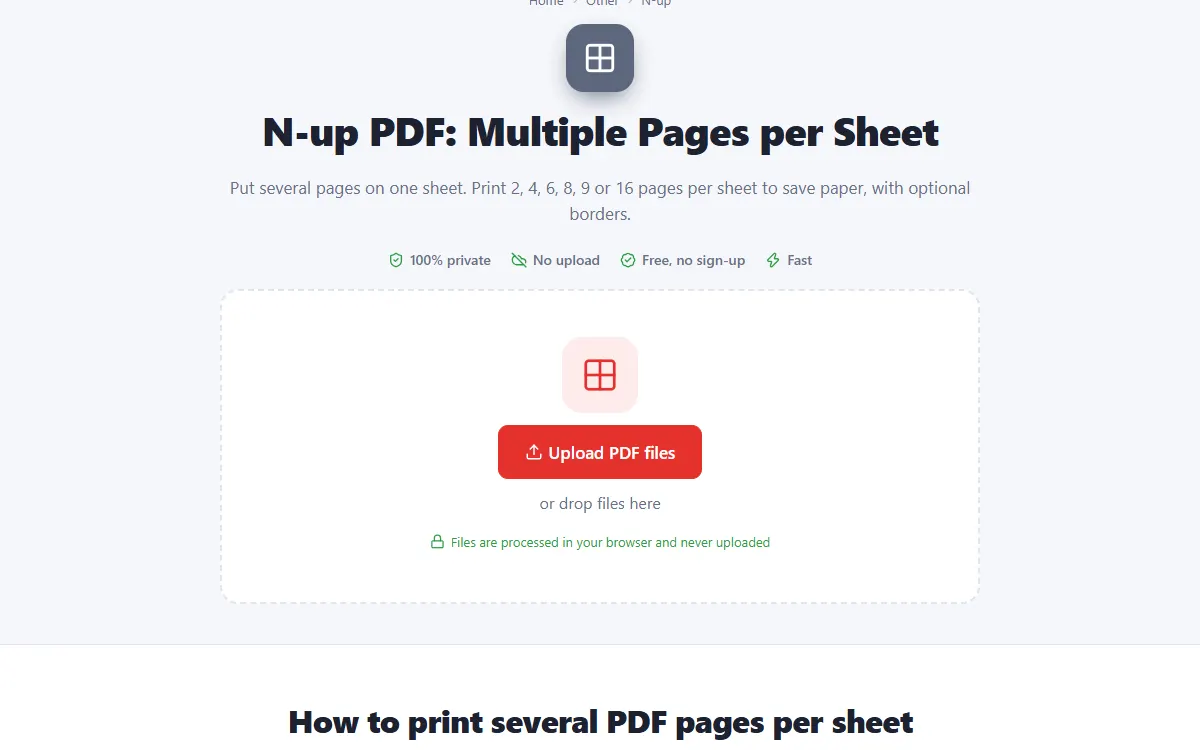
Upload your PDF
Click the upload button or drag and drop your PDF onto the page. Nothing is sent to a server: the file opens right in your browser.
-
2
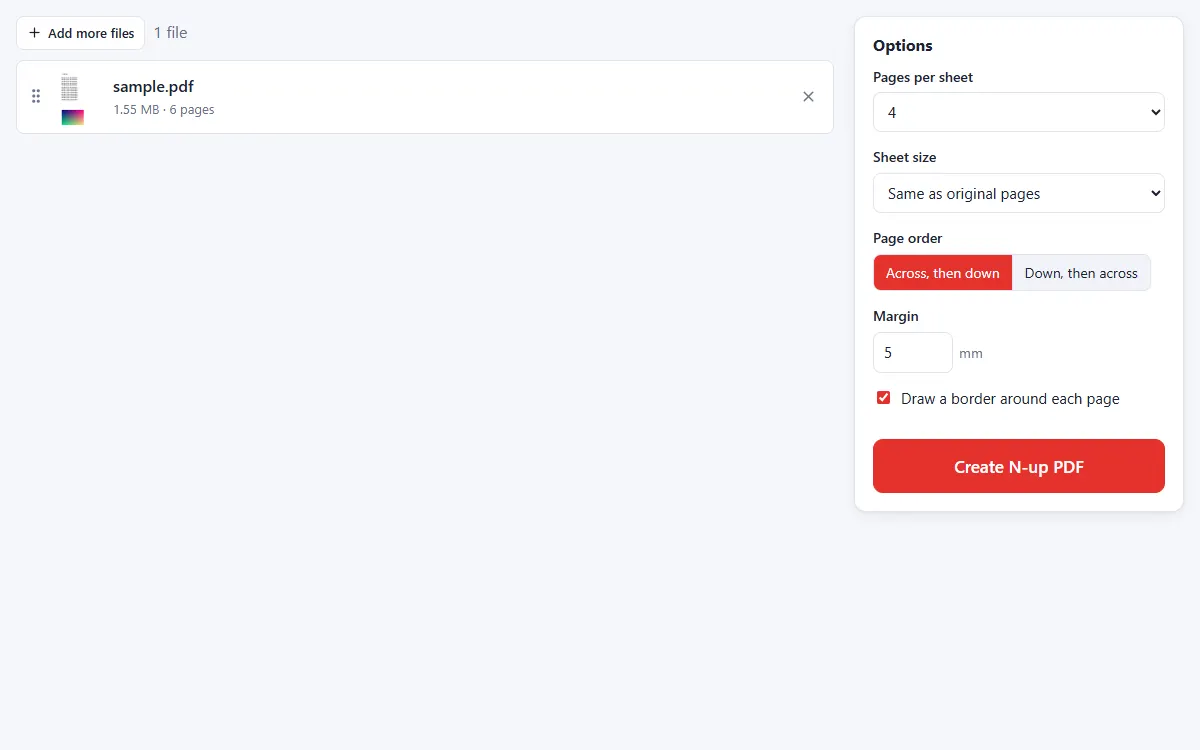
Choose the layout
Pick 2, 4, 6, 8, 9 or 16 pages per sheet, the sheet size, page order, margin and borders.
-
3
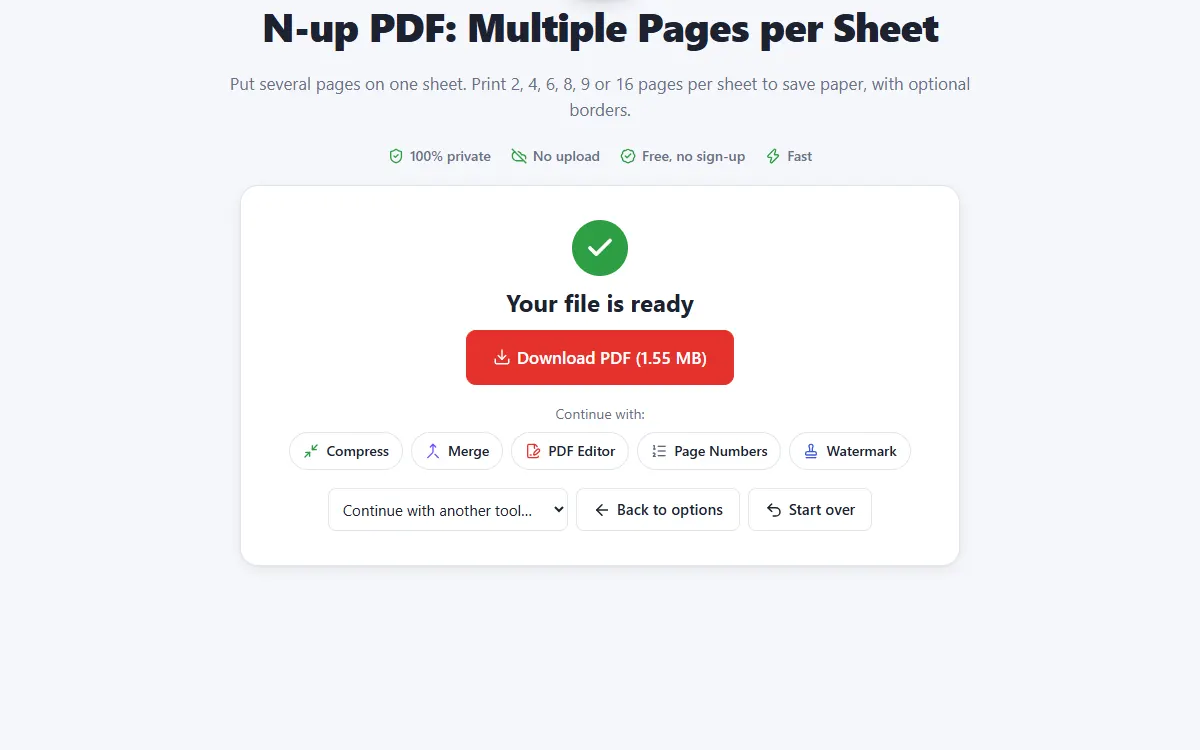
Download the N-up PDF
Print fewer sheets or create handouts in seconds.
Why use our N-up tool
Best fit automatically
Sheet orientation is chosen so pages are as large as possible.
Sharp output
Pages are placed as vectors, not images.
Private and secure
Files are processed on your own device. They are never uploaded, stored or seen by anyone.
Free, no sign-up
No account, no email and no watermark on your documents.
Fast
No waiting for uploads and downloads: results are ready in seconds.
Works everywhere
Windows, Mac, Linux, Android and iPhone, in any modern browser.
N-up: frequently asked questions
What does N-up mean?
Printing several pages (N) on one sheet of paper, for example 2-up or 4-up.
Can I print on A4 or Letter?
Yes. Choose the sheet size, or keep the original page size.
Is N-up free to use?
Yes. PDFNest is free, needs no account and never adds a watermark.
Are my files safe?
Yes. Your files are processed inside your browser and are never uploaded to a server, so nobody else can access them.
Does it work on my phone?
Yes. It works in any modern browser on Android and iPhone as well as on computers. Large files are faster on a computer.